Help with Geekify and Geekify Feedback
Setup steps and fixes for the tools I give clients during a website build. If something here doesn't solve it, email me and you'll hear back from me, not a ticket queue.
Geekify Feedback
Leave feedback on the page itself
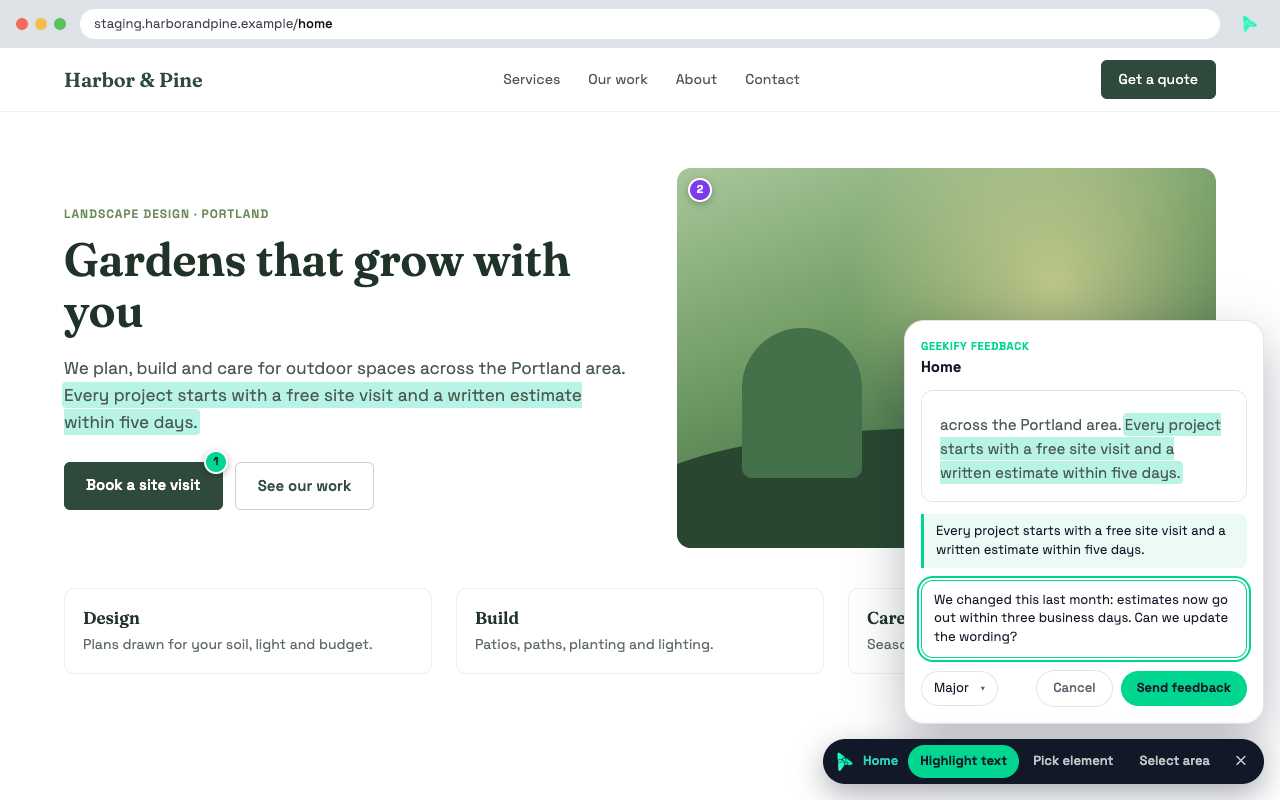
Geekify Feedback is a Chrome extension for reviewing a site I'm building for you. Point at the sentence, image or section you mean, type a comment, and it saves a cropped screenshot with it. No long emails about "the third paragraph on the services page."
The extension is unlisted. I'll send you the install link when your review opens.
Get set up
Install the extension
Add Geekify Feedback to Chrome from the Chrome Web Store link I send you. It's unlisted, so it won't come up in a store search.
Sign in with your project docs email
Click the extension icon and enter the email you use for your project docs. I'll email you a code: type the code into the extension. Use the code from the newest email, and don't click the link in it.
Turn it on for your staged site
Open the staged site and click "Activate on this site". Chrome asks for access to that one site only.
Give feedback
Click "Give feedback" in the extension, pick a tool, type your comment, choose how serious it is (polish, minor, major or blocker) and send.
The three tools
- Highlight text: Select the words you want changed.
- Pick element: Click an image, button or section.
- Select area: Drag a box around anything else.
Keyboard shortcut
Alt+Shift+F on Windows, Control+Shift+F on a Mac, turns feedback mode on or off without opening the extension.
Where your feedback goes
Each comment goes to the Build Report in your project docs, with its screenshot, the page address and any text you selected. That's where I pick it up. Numbered pins on the page show what you've already sent, and a pin turns violet when a fix is ready for you to check.
Troubleshooting
When Geekify Feedback isn't working
The toolbar says "Not a review page"
Either the page isn't part of an open review yet, or you're signed in with a different email from the one on your project docs. Check the email at the bottom of the extension's popup. If it's right, email me the page address and I'll add the page to your review.
My sign-in code was rejected
Only the newest code works, so if you asked more than once, use the code from the most recent email. Type the code in rather than clicking the link. If it still fails, click "Resend code" in the extension and use the code from that email.
The toolbar disappeared after an update
Refresh the tab. Chrome reloads the extension when it updates, and pages that were already open lose the toolbar until they reload.
I don't see "Activate on this site"
The extension only offers it on sites that belong to one of your open reviews. Make sure you're on the staged address I sent you, not the live site.
I sent feedback while my connection was down
It's not lost. The extension holds it and sends it once you're back online.
What does the extension collect?
Your email, your comments, the screenshot and text you pick, the page address and your browser size. It only runs on sites you've turned it on for. The details are in the Geekify Feedback privacy policy.
How the extension handles your data: Geekify Feedback privacy policy
Geekify
Geekify for HubSpot
Geekify is the HubSpot CMS theme I build client sites on, along with the Geekify Developer app that connects it to your portal.
Editing your site
Your project docs cover the modules, sections and page templates on your site. The public Geekify editor guide shows how the building blocks fit together.
Project docs and Build Report
Sign in to your project docs with your project email to see your guides, open reviews and the Build Report.
Reporting an issue
Email me the page address, what you were doing and what went wrong. A screenshot helps. If a module or template is misbehaving, include the page's name in HubSpot too.
It helps if you include
- The page address (URL) you were on
- What you clicked and what you expected to happen
- A screenshot, if you can grab one
- The email you sign in with